 Alarm Arcade
Next alarm widget for iPhone home screen
Alarm Arcade's home screen widget shows your next scheduled alarm directly on your iPhone home screen or lock screen — so you always know what's coming without opening the app. A small friction reduction that makes managing your alarm setup noticeably smoother.
The Alarm Arcade widget can be added to your iPhone home screen or lock screen through the standard iOS widget system. Once added, it displays your next active alarm time at a glance — no need to open the app to confirm your alarm is set. Tapping the widget opens Alarm Arcade directly, so adjustments take one tap. The widget updates automatically when you change alarm times in the app.
The psychology behind visible alarm confirmation is straightforward: uncertainty about whether your alarm is set correctly is a low-level source of anxiety that many people manage by opening their alarm app multiple times before sleep. A widget that displays the next alarm time on the home screen resolves this uncertainty passively — you see it when you check your phone before bed without having to navigate to a separate app. Reduced bedtime anxiety has a modest but real effect on sleep onset quality.
Who This Is For
- People who check their alarm app multiple times before bed to confirm it's set
- Users who want their alarm time visible at a glance from the home screen
- People who set different alarms on different days and want easy confirmation
- iPhone users who customize their home screen and want their alarm visible
- Anyone who has overslept because they thought their alarm was set but it wasn't
- People who want to quickly adjust their next alarm without opening the full app
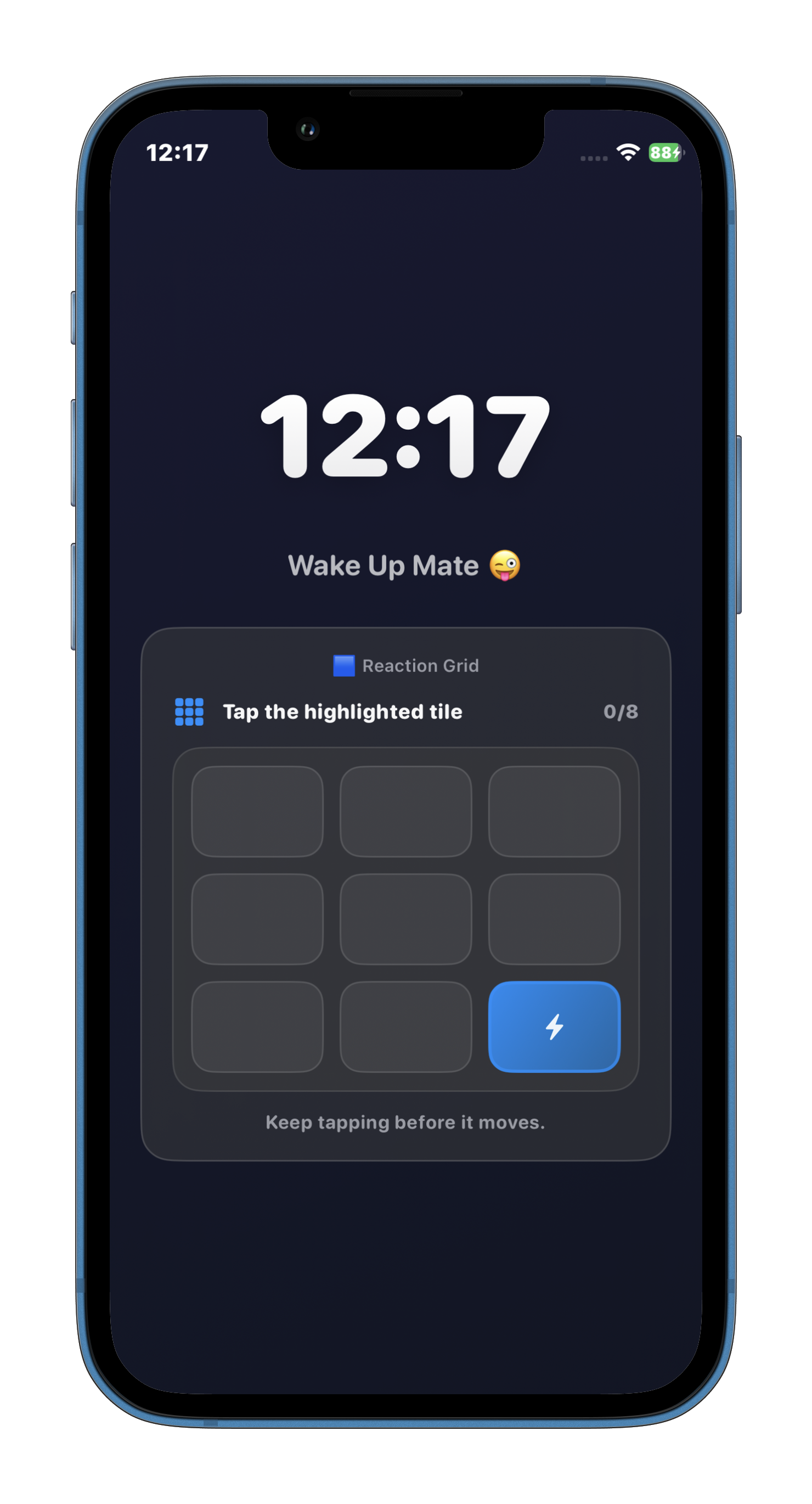
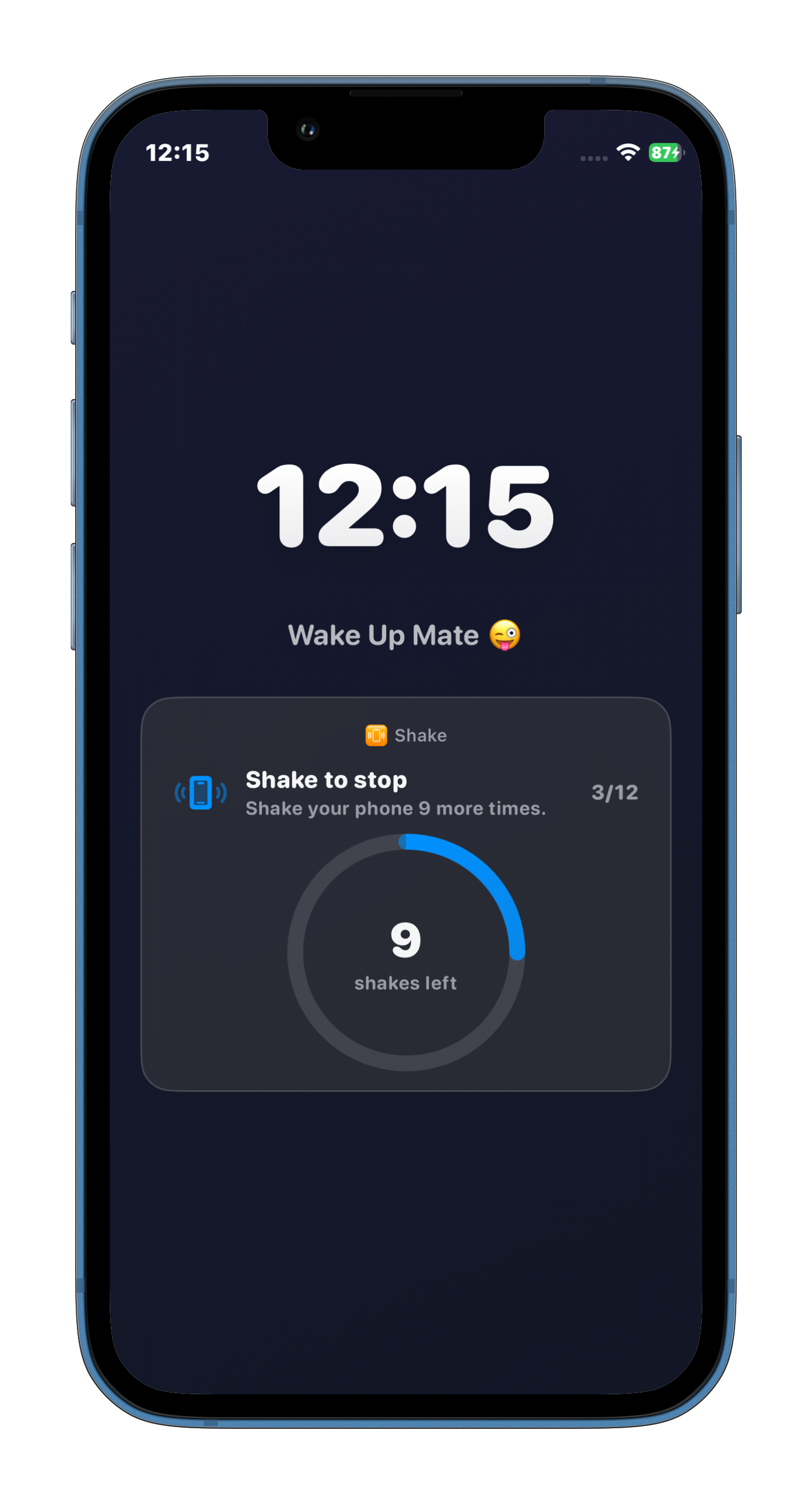
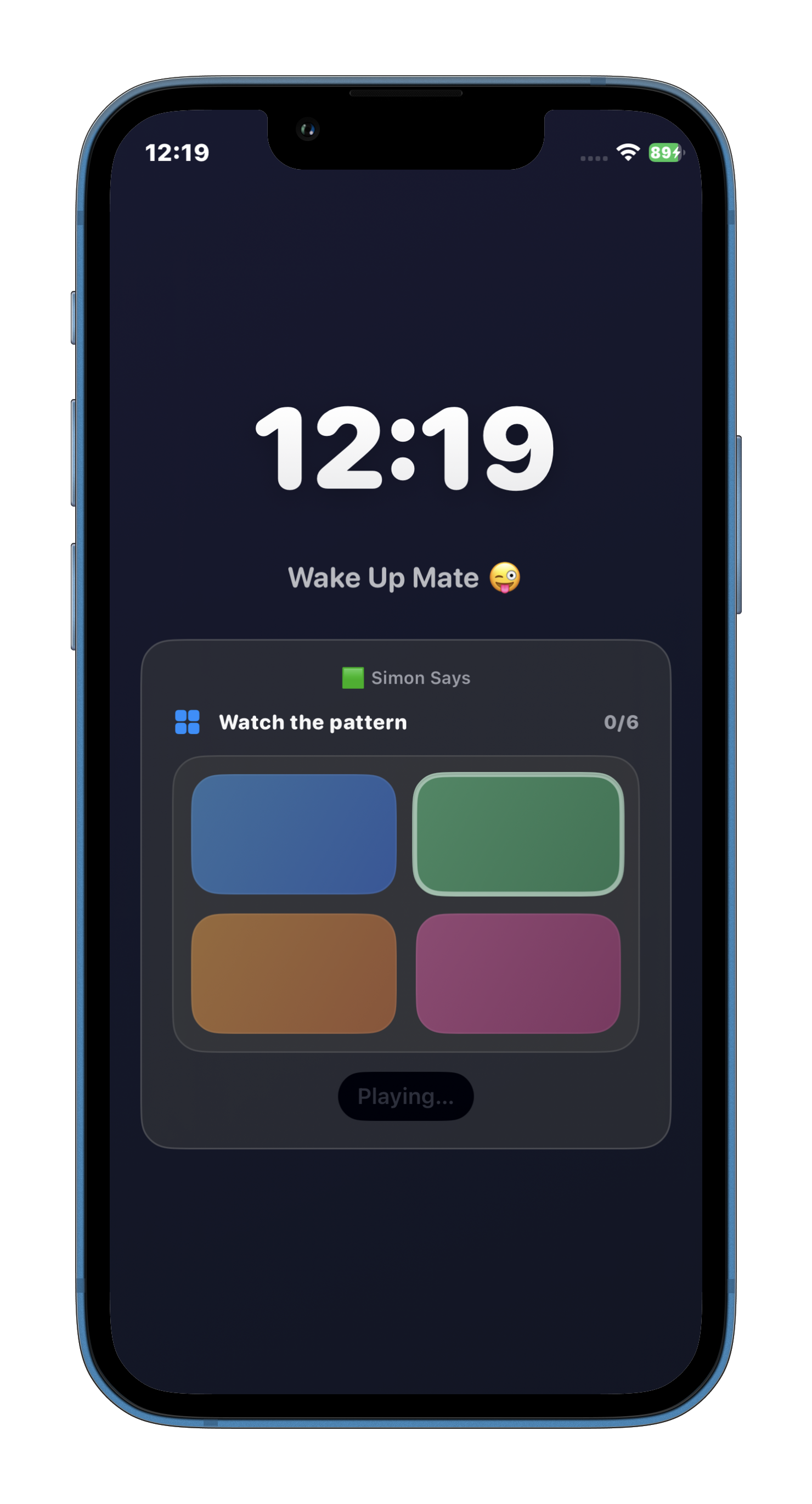
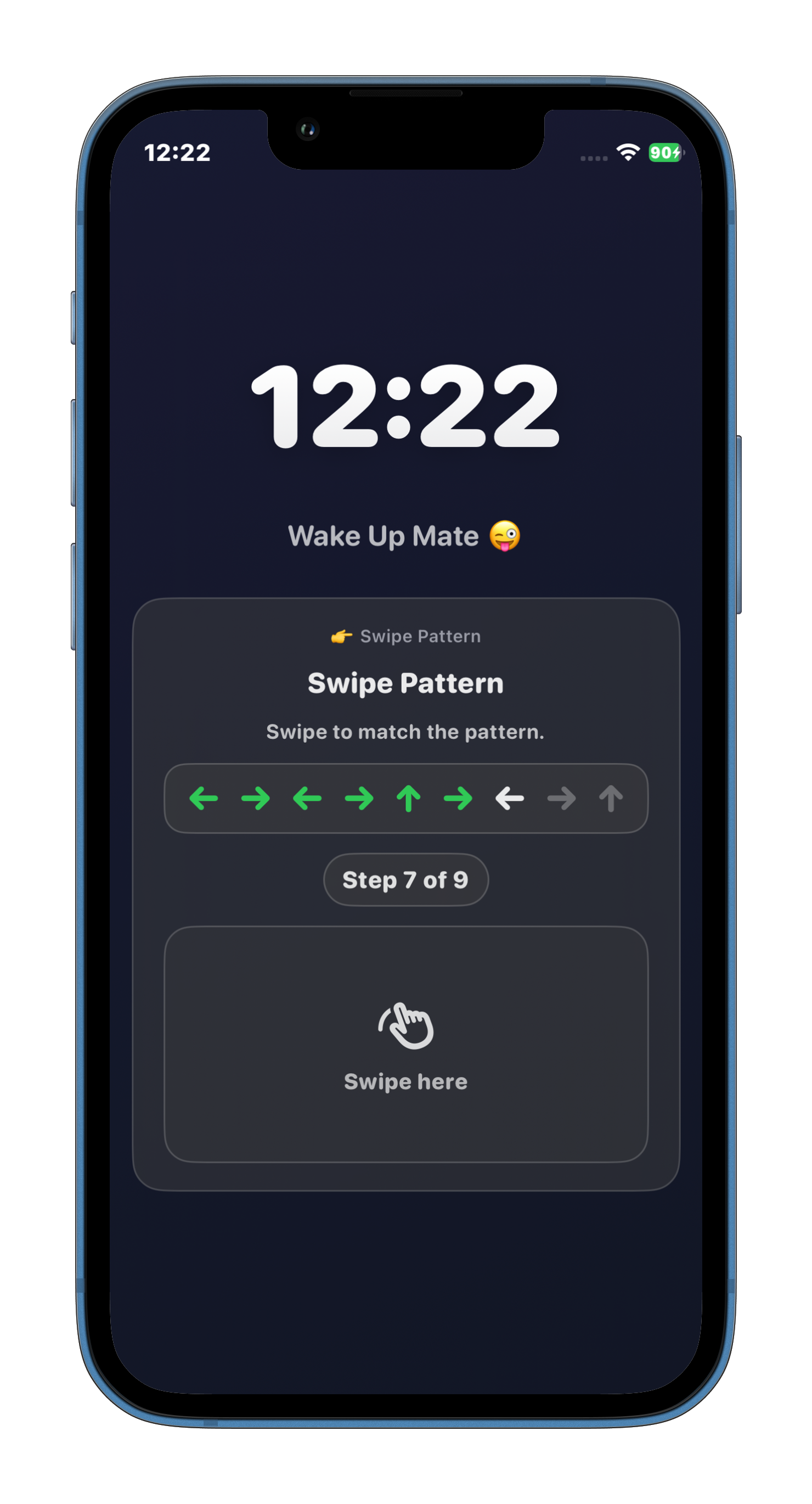
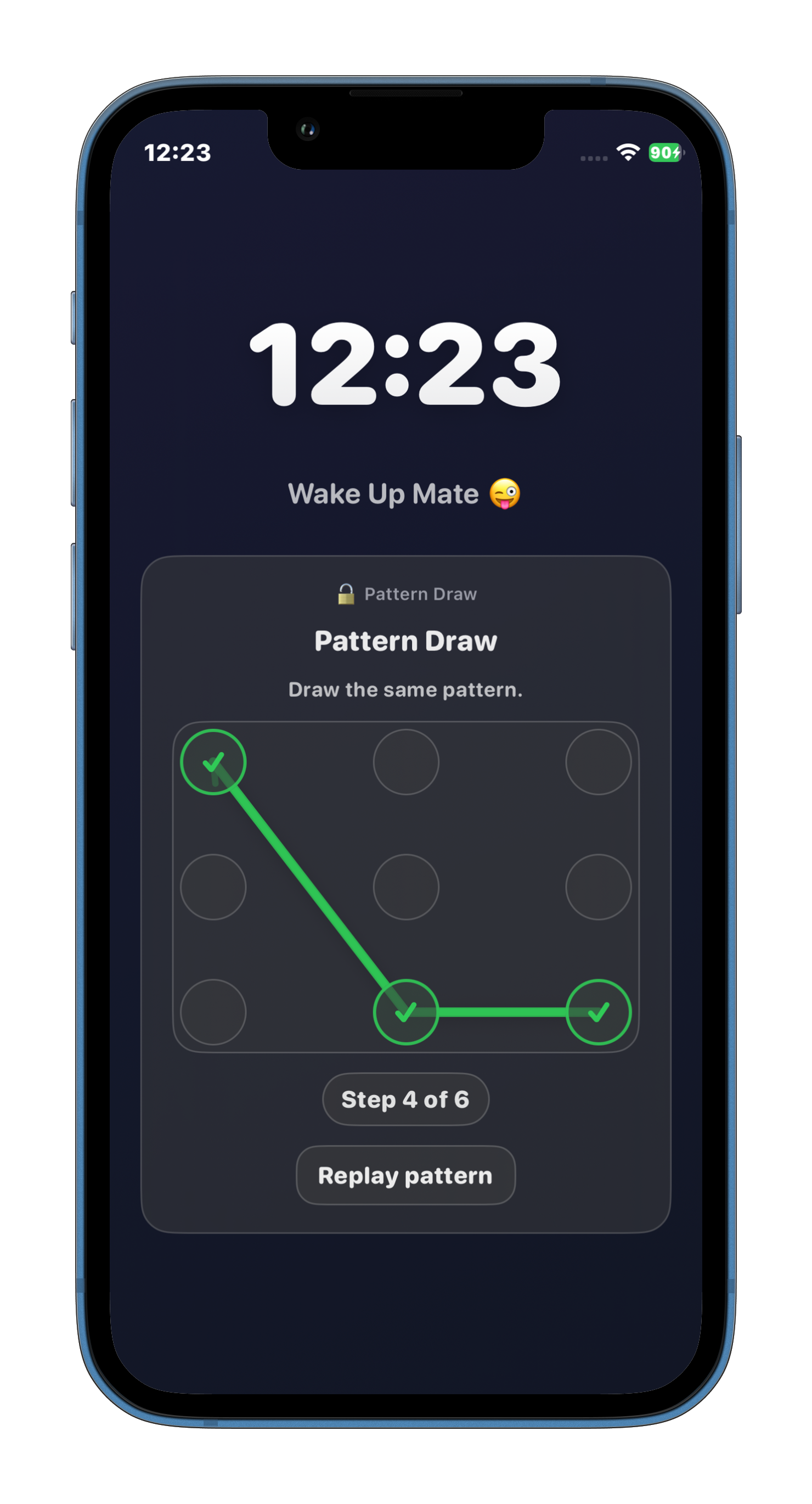
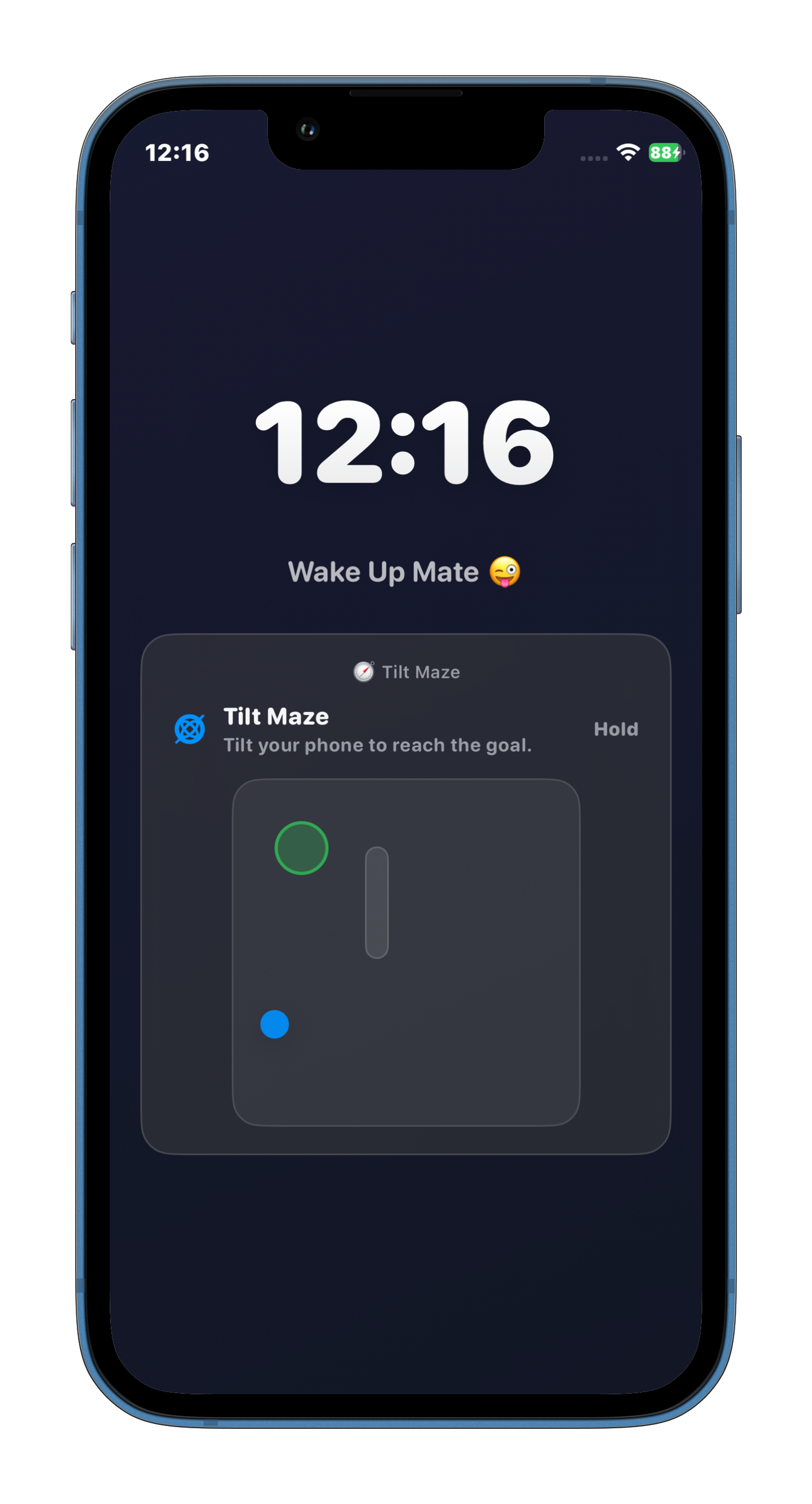
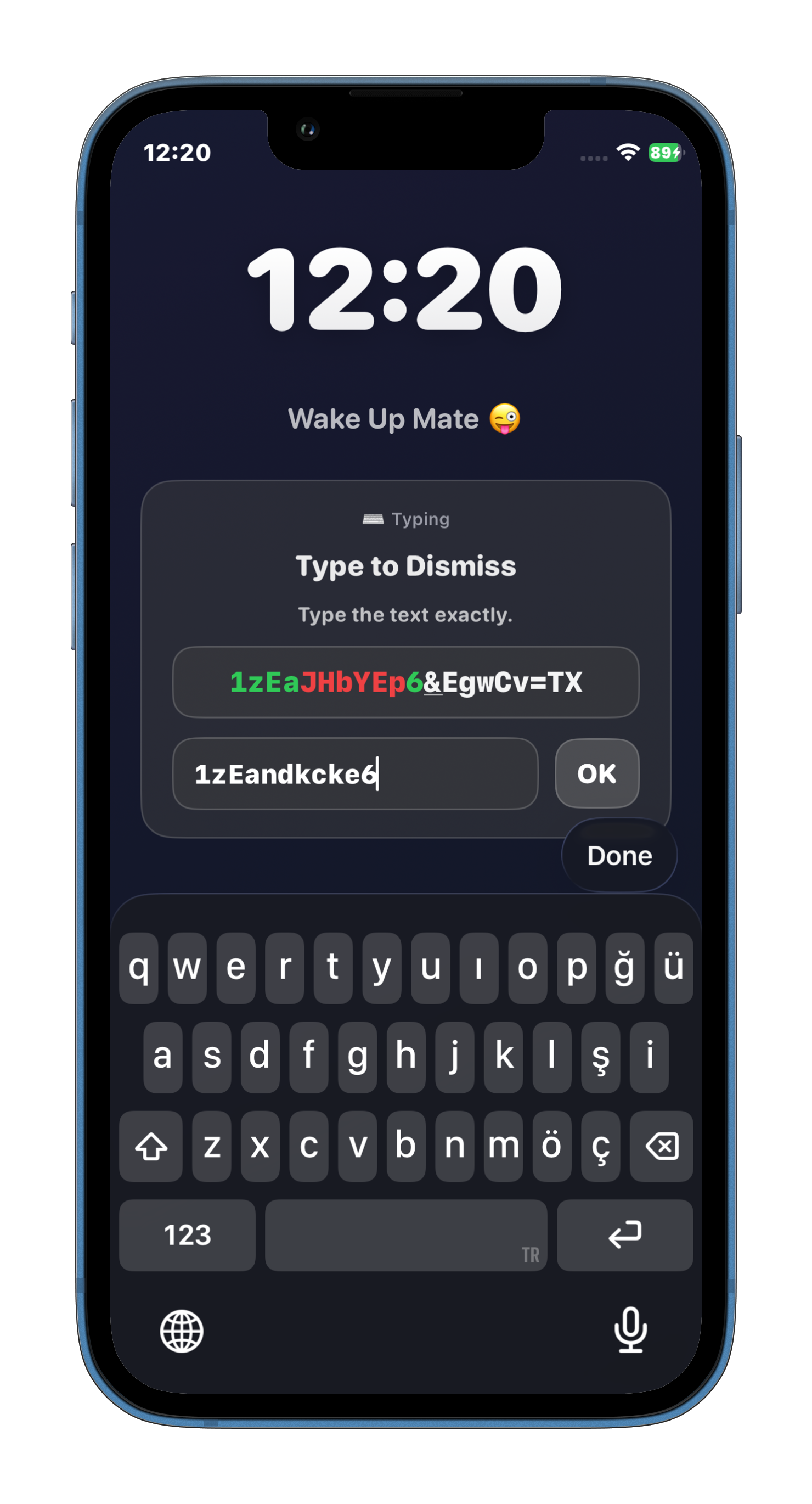
Why Alarm Arcade Works for People using the Alarm Arcade home screen widget
See your next alarm without opening the app
One glance at your home screen confirms your alarm is set and shows the time. No taps, no navigation, no uncertainty. For people who check their alarm before bed, this eliminates a repetitive step and reduces the low-level anxiety of wondering whether they set it correctly.
One tap to adjust — opens the app directly
Tapping the widget opens Alarm Arcade to your alarm settings. Changing a time, switching a mission, or enabling a disabled alarm takes one tap from the home screen. The reduction in friction between intending to adjust and actually adjusting means last-minute alarm changes are less likely to be skipped.
Works on both home screen and lock screen
The widget can be placed on your home screen for daytime access or on your lock screen for at-a-glance confirmation when you check your phone before sleep. Lock screen placement is particularly useful — your last action before putting the phone down can include a visible confirmation of tomorrow's alarm.
Alarm Arcade widget vs checking the Clock app — Why it actually works
| Feature | Alarm Arcade | Alarmy | iPhone Clock |
|---|---|---|---|
| No subscription required | ✓ | ✗ | ✓ |
| Game-based dismissal | ✓ | ✓ | ✗ |
| Works offline (no account) | ✓ | ✗ | ✓ |
| Pricing | $1.49 one-time | $4.99/mo | Free |
| Multiple mission types | ✓ | ✓ | ✗ |
How to set up and get the most out of the Alarm Arcade widget
To add the widget: long-press on your iPhone home screen, tap the + button in the top corner, search for Alarm Arcade, and select the widget size. For lock screen placement, long-press the lock screen instead. Place the widget where you naturally look before bed — most people check their phone one last time before sleep, and the lock screen or first home screen page is the natural location for alarm confirmation.
The widget is most valuable as a confirmation tool, not a primary alarm management interface. Set your alarms for the week in the app, then use the widget purely to verify the next one is correct before bed. This separates the planning phase (opening the app, setting missions and times) from the confirmation phase (a glance at the widget), which is a cleaner mental model for managing your alarm routine.
Widget plus mission setup for a complete alarm routine
Routine 1 — Evening confirmation habit: Place the widget on your lock screen. Before putting your phone down for the night, your last check confirms the next alarm time and assigned mission. If something needs changing, one tap opens the app. This prevents the 'did I set my alarm?' loop that delays sleep onset for many people.
Routine 2 — Weekly planning plus widget: Once per week (Sunday evening, for example), open Alarm Arcade and configure alarms for the coming week — different missions on different days, correct times for each day's schedule. After setup, the widget shows whatever is next in the queue. You do the planning work once, the widget handles confirmation all week. Routine 3 — Quick adjustment workflow: If you need to change tomorrow's alarm time (early meeting, late-night change of plans), the widget gives you direct access without hunting for the app icon. Less friction on adjustments means fewer 'I meant to change my alarm but forgot' oversleeps.
Frequently Asked Questions
Long-press on any empty space on your home screen until the icons jiggle. Tap the + button in the top-left corner. Search for 'Alarm Arcade' in the widget search field. Select the widget and tap 'Add Widget.' Drag it to your preferred location. For lock screen widgets, long-press the lock screen instead and follow the same process with the lock screen widget area.
Yes. The widget reads your current alarm configuration from Alarm Arcade and updates when you make changes in the app. The update may take a few moments due to iOS's widget refresh cycle, but it reflects your current settings without manual intervention.
Yes. iOS widgets display information from the app's data without requiring the app to be open. The widget shows your next alarm time as long as Alarm Arcade is installed. It doesn't require the app to be running in the background to display the correct information.
Wake up with your brain switched on
This feature is free. Download Alarm Arcade and add the widget to your home screen tonight.
Download Alarm Arcade — Free